Direct download · Signed & notarized · Free, tip-supported
Your webcam feed, run through a control room.
CamDeck floats images or plays video clips over your camera, organized into folders,
runs a live lower-third bar, and applies real broadcast effects — then shows up as its own camera inside
Zoom,
Google Meet,
or anything else that watches your Mac's camera.
15 REAL-TIME EFFECTS — VHS, thermal, night ops, mission control…LIVE LOWER THIRDS — type it mid-show, it updates instantlyNOW PLAYING MODE — shows your Spotify or Music trackWEATHER MODE — live local conditions on the barSIGNED & NOTARIZED — opens like any other Mac appTIP-SUPPORTED — pay if it earns its spot15 REAL-TIME EFFECTS — VHS, thermal, night ops, mission control…LIVE LOWER THIRDS — type it mid-show, it updates instantlyNOW PLAYING MODE — shows your Spotify or Music trackWEATHER MODE — live local conditions on the barSIGNED & NOTARIZED — opens like any other Mac appTIP-SUPPORTED — pay if it earns its spot
Program guide
Everything the app actually does.
Everything you need to look good on Zoom, Google Meet, and most other Mac video call apps — image and video overlays, folders, a live lower-third bar, and 15 real-time Mac camera effects.
CH 01
Image & video library
Drag in images or video clips, paste an image URL, or hit ⌘V to drop in anything on your clipboard. Search-as-you-type filtering, drag to reorder, rename, reveal in Finder — click anything to make it live instantly.
CH 02
Organize with folders
Group images and videos into named folders — Commercials, Music Videos, whatever fits your show. Drag to reorder folders and items, right-click to move things between folders. "All Items" always shows the full library.
CH 03
Play video overlays live
Send a video clip straight into the feed as its own camera output, with a draggable progress bar, an independent volume slider, and Play / Stop / Rewind controls. Switch back to your live camera with one click, or keep yourself in a picture-in-picture corner while the clip plays.
CH 04
Play as Channel
Right-click a folder of videos and choose Play as Channel — every clip plays in order and loops back to the first when it reaches the end, like a real TV channel. A Next button skips ahead manually, and an Up Next label shows what's coming.
CH 05
Placement, size & Fancy Mode
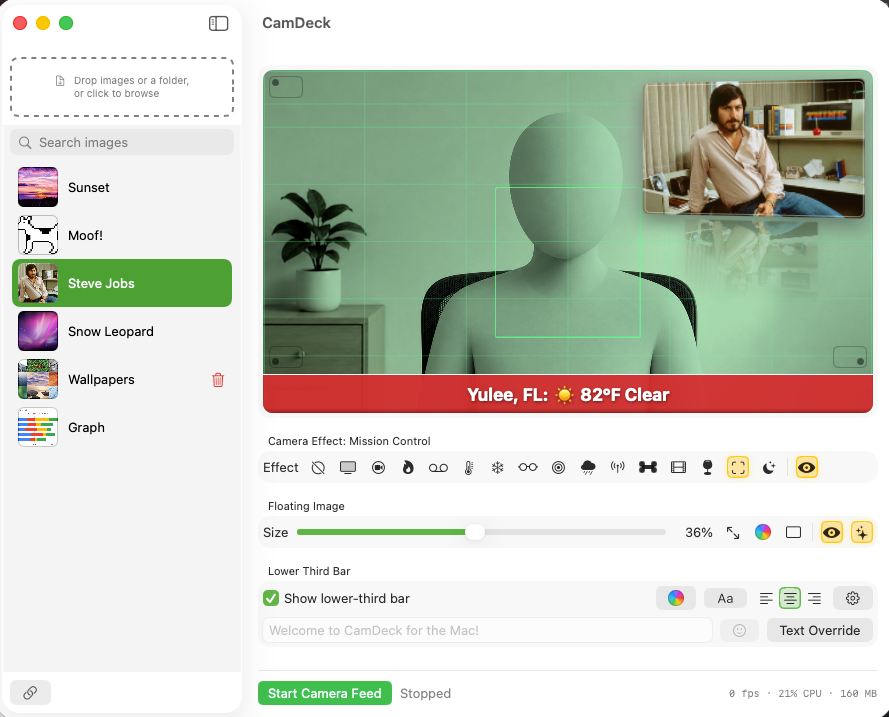
Click a corner right on the preview to move the overlay there. Slide to resize live, click to punch in fullscreen and snap back. Frame color and border toggles, plus Fancy Mode — reflection, 3D tilt, highlight edge, and glow.
CH 06
Live lower-third bar
Type mid-show and it updates on air. Emoji picker, alignment, color, and a transparency slider right on the main window, saved preset phrases ("Bathroom Break"), and a design panel for scroll speed and text shadow. Long text auto-scrolls into a ticker.
CH 07
Weather, Now Playing & RSS
Weather mode swaps in live conditions for your zip code. Now Playing mode shows your Spotify or Apple Music track. RSS mode tickers any news feed you point it at. Video Title mode shows the name of whatever clip is playing. One click swaps between them.
CH 08
Countdown mode
Point the lower third at a date instead of typed text — name the event, pick the date, and it counts down live ("Countdown to CamDeck's Beta Release: 15 days"). Great for launch dates, live show start times, or any on-air deadline.
CH 09
15 real-time effects
Each one is a distinct filter with its own overlays and processing — not a color tint. VHS with tracking glitches, a thermal heat map, a NASA-style Mission Control HUD, genuine red/cyan 3D. Works on video overlays too. Full channel listing below.
CH 10
Pick your camera
Choose the exact physical webcam CamDeck captures when more than one is connected — and it plays nice with Zoom virtual backgrounds, with or without a green screen.
CH 11
Emergency Slide
One button next to Start/Stop Camera Feed instantly cuts the entire output to a full-screen standby image — no video, effects, overlay, or lower third. The camera keeps running underneath, so switching back is just as instant.
CH 12
Broadcast timer
Start the feed and a live broadcast timer runs next to the button, so you always know how long you've been on air.
CH 13
Native, signed, no subscription
A real macOS camera extension plus a small host app. Signed and notarized by Apple's process, downloaded straight from here, no account, no subscription, no App Store.
Channel listing
Fifteen Mac camera effects for almost any video call app. Switched live, mid-call.
Every effect is real processing with its own burned-in graphics — timestamps, tracking glitches, telemetry, falling snow. Flip between them while the camera is running.
01
Old TV
Black & white, heavy contrast, rolling scanlines, picture-tear, film grain.
02
Security Cam
Cool CCTV tone with a "CAM 01 / REC" readout and live timestamp.
03
Flame
Warm grade with procedural embers rising along the bottom edge.
04
VHS
Color bleed, tracking glitches, "▶ PLAY" counter, a fake 12:00 clock, camcorder battery icon.
05
Thermal
Real blue-to-red heat-map luminance mapping.
06
Snow
Cool winter grade with actual falling snowflakes drifting down.
07
3D
Genuine red/cyan anaglyph processing — grab the paper glasses.
08
CyberOps
Falling green digital rain over a darkened silhouette.
09
NightOps
Pure red-on-black night-vision look.
10
Local Cable
Washed color, fuzzy signal, a burned-in station ID and blinking LIVE timecode.
11
X-Ray
Inverted navy-and-cyan radiograph — a true photographic negative.
12
Noir
Moody black & white with deep blacks and a dark vignette.
13
Drunk Mode
Double vision, motion-trail shake, woozy color. Not for serious moments.
14
Mission Control
Dense green NASA telemetry: grid, tracking bracket, radar sweep, mission clock.
Security Cam — the REC readout and timestamp are burned into the feed itself.Mission Control — grid lines, tracking bracket, and a radar sweep over the feed.
Monitor wall
See it working.
Light mode: folder-organized sidebar, floating overlay, and a lower third that reads from across the room.A video overlay playing as the camera feed, with a picture-in-picture corner for your live camera.RSS mode: ticker headlines from any feed URL you point it at.Now Playing mode: shows your current Spotify or Apple Music track.Paste a URL, get an overlay. Clipboard paste works too.Pick the exact camera. No guessing, no wrong device.Countdown mode: name an event, pick a date, watch it count down live.
Cue the intro
On air in about a minute.
Download the DMG and drag CamDeck into Applications.
Launch it and approve the camera extension when macOS asks — click Allow. A banner brings you back if you click Don't Allow by mistake.
Pick "CamDeck" as the camera in Zoom, Meet, or QuickTime. That's it.
Tested with Zoom, QuickTime, and Google Meet. FaceTime blocks all virtual cameras — that one's on Apple.
Tested with macOS Tahoe 26.5.1 only. Not compatible with macOS betas yet.
It's signed and notarized, so it opens like any Mac app — no Gatekeeper warnings.
Frequently asked
Mac camera effects for Zoom, Google Meet, and most Mac video apps, answered.
Does CamDeck work with Zoom?
Yes. CamDeck shows up as its own camera named "CamDeck" in Zoom's camera picker, complete with whatever overlay, lower third, and effect you have running.
Does CamDeck work with Google Meet?
Yes. CamDeck works with Google Meet, including a dedicated lower-third setting that adjusts the bar for Meet's camera cropping and zooming so it never gets clipped.
Does CamDeck work with FaceTime?
No. Apple restricts FaceTime from using any third-party virtual camera, so CamDeck cannot appear there. That's an Apple platform restriction, not a CamDeck limitation, and it applies to every virtual camera app on Mac.
Is CamDeck free?
Yes. CamDeck is completely free to download and use, with every feature unlocked. It's tip-supported through Buy Me a Coffee for anyone who wants to support development.
Is CamDeck safe to install outside the Mac App Store?
Yes. CamDeck is signed with an Apple Developer ID and notarized by Apple's automated security scan, so it opens normally on macOS without any Gatekeeper warning, the same as any App Store app.
What camera effects does CamDeck include for Mac video calls?
CamDeck includes 15 real-time camera effects that work in Zoom, Google Meet, and most other Mac video call apps: Old TV, Security Cam, Flame, VHS, Thermal, Snow, 3D, CyberOps, NightOps, Local Cable, X-Ray, Noir, Drunk Mode, Mission Control, and Dream Sequence.
Do you have a Windows version?
No. We don't build Windows software at this time. CamDeck is a native Mac app built on macOS's camera extension framework, currently tested on macOS Tahoe 26.5.1.
Same philosophy as If Then Software back in the AppleScript era — some of those tools made it into Macworld, MacAddict, and MacUser: build something useful, ship it directly, and let people support it if it earns a place in their workflow.
A tip of the hat to CamTwist, the discontinued Mac app whose simplicity helped inspire this one. CamDeck was custom-built to solve a real problem backstage on a live weekly broadcast, and shared because we loved it too much to keep it to ourselves.
Use it if it helps. Tip if you can. Keep the software alive if it keeps earning its spot.
Keep the station on the air.
CamDeck is free to run forever, tip-supported by people who use it. If it makes your stream, call, or recording better, tip whatever feels right.